AraOptical (FSOC) Link Status Check
Resources needed: AraOptical link and AraHaul host servers.
Short Description: The experiment allows users to check the status of the ARA Free Space Optical (FSO) link using related metrics.
Note
For this experiment, the FSOC link does not need to be up. In other words, this experiment can be performed even if the link appears as unavailable on the resource overview page.
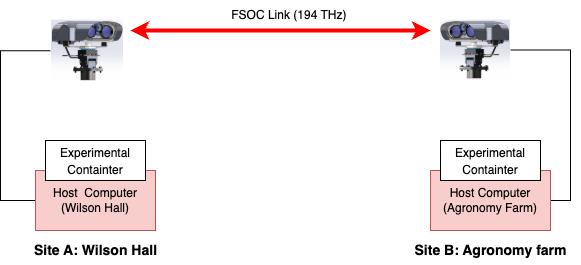
Figure below illustrates the experiment setup, involving a long-range (~6.5 miles) FSO AraHaul link between Wilson Hall and Agronomy Farm.
Detailed Steps for the Experiment
Follow the steps below to create leases and launch containers for this experiment:
Login to the portal portal.arawireless.org with login credentials.
Create two reservations using the Project -> Reservations -> Leases tab from the dashboard.
Aviat Host Computer at Wilson Hall
Site: Wilson Hall
Resource Type: AraHaul
Device Type: Host
Device ID: 000
Aviat Host Computer at Agronomy Farm
Site: Agronomy Farm
Resource Type: AraHaul
Device Type: Host
Device ID: 000
Launch containers, using Project -> Containers tab in the dashboard, on both reserved nodes using the corresponding reservation IDs. For containers, use the following attributes:
Container Image:
arawirelesshub/araopticalcli:sshNetwork: ARA_Shared_Net.
Remaining attributes can be provided at your discretion. Refer to ARA Hello World Experiment for default settings.
Once the container is launched, note the floating IPs to access the containers remotely through SSH via ARA jumpbox. The containers can be accessed via the Console tab of the respective containers in the Project -> Containers tab from the dashboard or using SSH via the jumpbox server. Visit ARA Jumpbox for more information on accessing containers via jumpbox.
For retrieving the received signal power (both in dBm and mW) from the FSO link, execute the following commands in the respective container:
For rx power output in mW and dBm:
# araopticalcli interface status show xe-0/0/4 -f rx-signal-avg-optical-powerExample output from Wilson Hall container:
root@WilsonHall-Host-000:/# araopticalcli interface status show xe-0/0/4 -f rx-signal-avg-optical-power-dbm
Interface: xe-0/0/4
rx-signal-avg-optical-power-dbm -33.01
root@WilsonHall-Host-000:/# araopticalcli interface status show xe-0/0/4 -f rx-signal-avg-optical-power
Interface: xe-0/0/4
rx-signal-avg-optical-power     0.0005
rx-signal-avg-optical-power-dbm -33.01
Note
Here, the received power is measured from the optical switch.
To check the received signal power in remote mode, i.e., retrieve the received power at Wilson Hall FSOC from the Agronomy Farm or vice versa, use the following command in the respective container console:
For rx power output in mW and dBm:
# araopticalcli interface status show xe-0/0/4 -f rx-signal-avg-optical-power --remoteExample output:
root@WilsonHall-Host-000:/# araopticalcli interface status show xe-0/0/4 -f rx-signal-avg-optical-power-dbm --remote
Interface: xe-0/0/4
rx-signal-avg-optical-power-dbm -40.00
root@WilsonHall-Host-000:/# araopticalcli interface status show xe-0/0/4 -f rx-signal-avg-optical-power --remote
Interface: xe-0/0/4
rx-signal-avg-optical-power     0.0001
rx-signal-avg-optical-power-dbm -40.00
To check the whole laser output, i.e., the transmit power of the FSOC link measured at the switch, the following commands can be used:
For laser output in mW and dBm:
# araopticalcli interface status show xe-0/0/4 -f laser-output-powerExample output
root@WilsonHall-Host-000:/# araopticalcli interface status show xe-0/0/4 -f laser-output-power-dbm
Interface: xe-0/0/4
laser-output-power-dbm  2.01
root@WilsonHall-Host-000:/# araopticalcli interface status show xe-0/0/4 -f laser-output-power
Interface: xe-0/0/4
laser-output-power      1.5870
laser-output-power-dbm  2.01
root@WilsonHall-Host-000:/#
We are working on additional metrics available from the switch, and will be made available for researchers soon.
Tip
If you want to perform weather measurements along with the RAN experiments, refer to ARA Weather APIs.