Resources needed: Aviat Networks mmWave and microwave radios
(WTM 4800) and radio host servers.
Detailed Description: The experiment allows users to measure the
delay and bit-rate with different configuration of Aviat radios. The
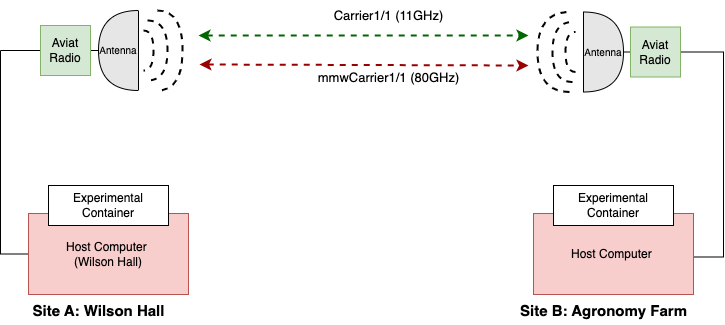
following figure shows the experiment setup involving a long-range (~6
miles) microwave/millimeter-wave links.
Once the container is launched, a floating IP will automatically
associated with each container. The floating IP allows you to
access the container remotely through SSH via ARA jumpbox. Visit
ARA Jumpbox for more information on accessing containers via
jumpbox.
On login to the Wilson Hall and Agronomy Farm containers, check the
local IP addresses of both, which are used in the experiment to
perform the latency testing. Run the following command for checking
container IP in both containers.
# ip addr
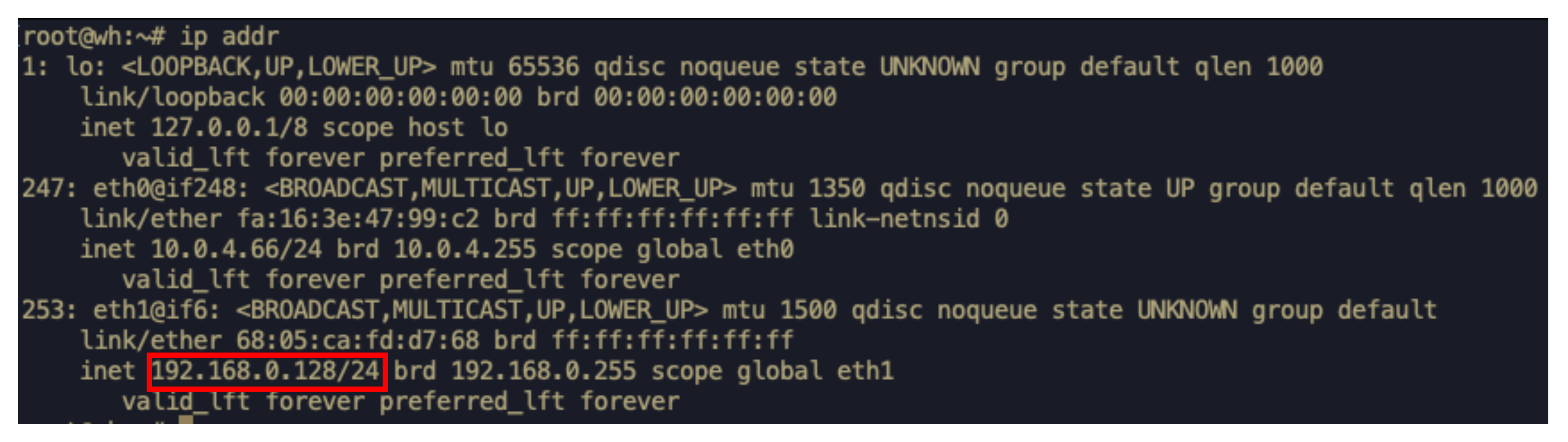
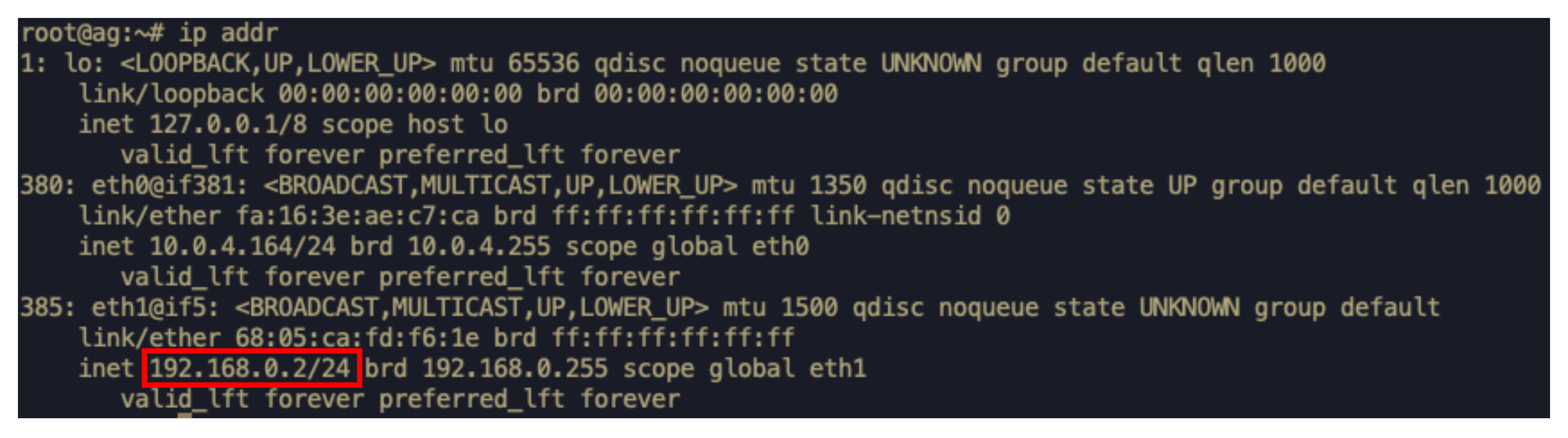
Note the IP address of the form 192.168.0.X in both containers.
An example output from Wilson Hall is as follows:
Example snapshot from Agronomy Farm is shown below.
Latency Measurement
6. In this experiment, we measure the latency, i.e., the
Round-Trip-Time (RTT), over the AraHaul link using the ping
utility.
Note
From Step 5 above, the IP address of Aviat at Wilson Hall
is 192.168.0.128 and of Agronomy Farm is
192.168.0.2.
For measuring the RTT from Wilson Hall to Agronmony Farm, execute
the following command at Wilson Hall container:
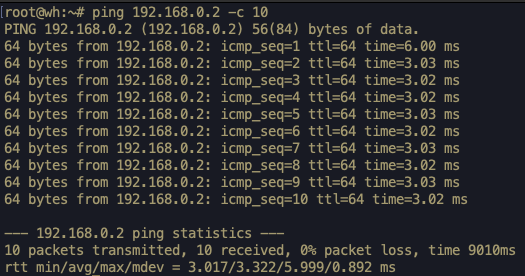
# ping 192.168.0.2 -c 10
Example output at Wilson Hall container.
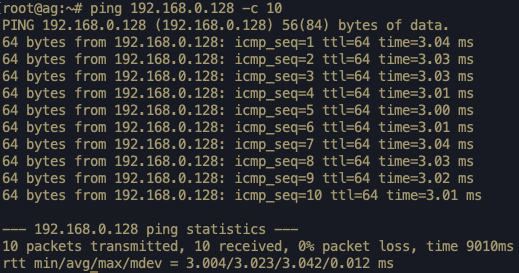
For measuring the RTT from Agronomy Farm to Wilson Hall, execute
the following command at the Agronomy Farm container.
# ping 192.168.0.128 -c 10
Throughput Measurement
For this experiment, we use the tool iPerf to test the throughput
over the AraHaul link. For measuring the throughput, we need to set
one container as iPerf server and the other as iPerf client. In
the example below, we run the iPerf server at Agronomy Farm and
the iPerf client at Wilson Hall.
Run the following at Agronomy Farm container to start iPerf
server.
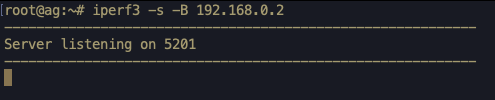
# iperf3 -s -B 192.168.0.2
The iPerf server start as follows.
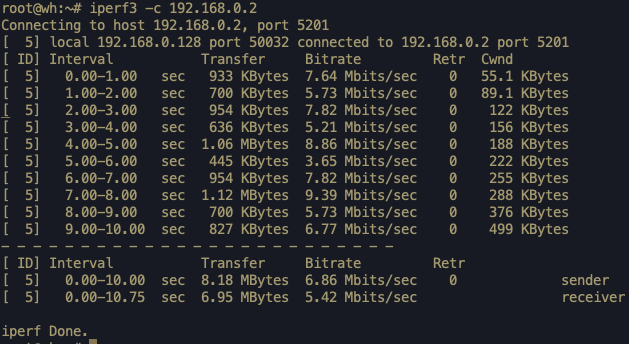
For measuring the throughput from Wilson Hall to Agronomy Farm, run
the iPerf client at Wilson Hall container as follows.
# iperf3 -c 192.168.0.2
A snapshot of the iPerf output at Agronomy Farm is shown below.
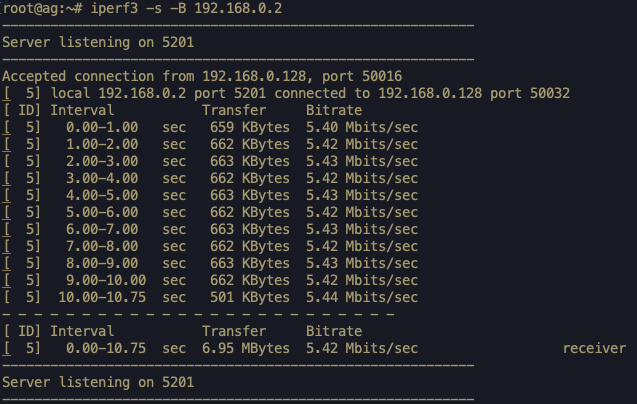
At the same time, the iPerf server at Wilson Hall produces the
following output.
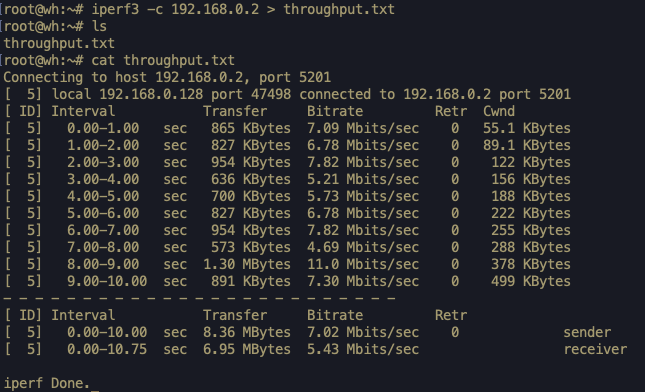
If you want to save the log of the iPerf result, use the
following command.
# iperf3 -c 192.168.0.2 > throughput.txt
Here a file throughput.txt will be created. The file can be
listed and content can be printed using the following commands.:
# ls# cat throughput.txt
An example output.
The file throughput.txt can be copied to your PC via the ARA
jumpbox as per the instructions provided here.
Tip
If you want to perform weather measurements along with the
RAN experiments, refer to ARA Weather APIs.