Outdoor Over-The-Air (OTA) OpenAirInterface 5G SA Experiment
Platform: OpenAirInterface5g and Universal Software Radio Peripherals~(USRPs)
Resources used: NI N320 (BS), N320 host computer, USRP B210, B210 host computer, power amplifiers, Commscope SS-65M-R2 Sector BS Antenna, and Laird OC69421 UE Antenna
Description: This experiment features a 5G network deployment using containerized 5G software components of OpenAirInterface5g, i.e., a containerized gNB, a containerized nrUE, and a containerized core network deployed in Intel x86 servers. The core network is deployed in the data center and connects to the base station via long distance fiber backhaul connection. The following figure shows the 5G network created from the experiment.

Note
For OAI experiments, you have two options for the core network:
Use the ARA-provided core network: In this case you can use the core network provided by ARA. No separate resource reservation and container is required for the core network.
Deploy your own core network: Here, you need to reserve another node specifically for the core network and deploy the core network in a container.
Detailed Steps for the Experiment
Login to ARA portal with your credentials.
Create two reservations using the Project -> Reservations -> Leases tab from the dashboard. Since each base station serves specific UEs in its footprint, we need to take extra care while reserving the nodes for experiments as well as setting the configuration parameters for gNB and UE. The following are BS-UE combinations which are operational for the OAI outdoor experiment. You can make use of any resource combination listed below for your experiment.
Experiment Resource Combination 1 (for Curtiss Farm)
Resource No.
Site
Resource Type
Device Type
Device ID
1
Curtiss Farm
AraRAN
Base Station
000
2
Curtiss Farm
AraRAN
User Equipment
000, 001, or 002
3
FeedMill
AraRAN
User Equipment
000, 001
Experiment Resource Combination 2 (for Agronomy Farm)
Resource No.
Site
Resource Type
Device Type
Device ID
1
Agronomy Farm
AraRAN
Base Station
000
2
Agronomy Farm
AraRAN
User Equipment
000, 001, 010, 020, or 032
Experiment Resource Combination 3 (for Wilson Hall)
Resource No.
Site
Resource Type
Device Type
Device ID
1
Wilson Hall
AraRAN
Base Station
000
2
Ames
AraRAN
User Equipment
000 or 140
Experiment Resource Combination 4 (for Gilbert)
Resource No.
Site
Resource Type
Device Type
Device ID
1
Gilbert
AraRAN
Base Station
000
2
Gilbert
AraRAN
User Equipment
003
For the core network, we can reserve any compute node. For this experiment, we use the following reservation.
Site
Resource Type
Device Type
Device ID
Data Center
Compute Node
Compute
000 or 001
Create an extra reservation for the 5G_Core using the Project -> Reservations -> Leases tab from the dashboard (Only if you are using Option 2 on the core network above, i.e., if you are creating your own core network.)
Create the containers on the respective nodes as provided in the following table.
Component/Reservation
Container Image
CPU
Memory
Network
Base Station (gNB)
arawirelesshub/openairinterface5g:gnb_generic_v18
8192
ARA_Shared_Net
User Equipment (nrUE)
arawirelesshub/openairinterface5g:ue_generic_v18
8192
ARA_Shared_Net
Core Network (Only if you use core network Option 2.)
arawirelesshub/openairinterface5g:cn8
8192
ARA_Shared_Net
For FeedMill UEs, use the docker images specified in the follwoing table.
Component/Reservation
Container Image
CPU
Memory
Network
FeedMill-UE-000
arawirelesshub/openairinterface5g:ue_generic_v1_feedmill8
8192
ARA_Shared_Net
FeedMill-UE-001
arawirelesshub/openairinterface5g:ue_generic_v1_feedmill018
8192
ARA_Shared_Net
Note
In case if you face any errors while launching container, refer to our FAQ.
Once the container is launched, take a note on the floating IP if you want to access the container from your PC via ARA jumpbox. The containers can be accessed via the console tab of the respective containers in the Project -> Containers tab from the dashboard or using ssh via the jumpbox server. Visit ARA Jumpbox for more information on accessing containers via jumpbox.
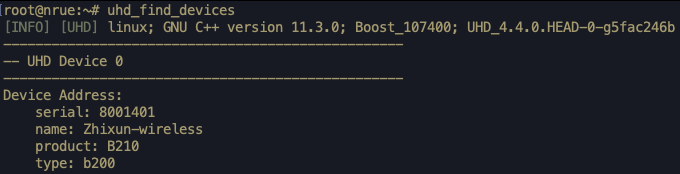
In both containers, run the following command to check the radios connected to the host. In case the command cannot find SDR, refer the instructions in FAQ.
# uhd_find_devicesThe output of the above command should look like the following image.
Base Station
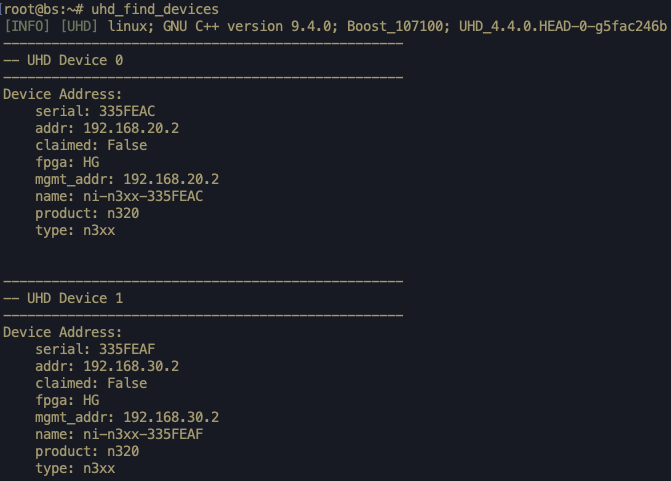
Note: The base station may show multiple SDRs, each corresponding to one sector.
User Equipment
[OPTIONAL: Execute this step only if you are running your own 5G core network. If you are using ARA-provided core network, skip this step.] In the 5G_Core container, run the following commands to start OAI 5G Core.
# cd oai-cn5g
# docker compose up -d
# iptables -P FORWARD ACCEPT
Note the IP address of the interface
eth0in the container by executing the command.# ifconfig eth0For this experiment, we assume that the IP address of the core network container is 10.0.4.100.
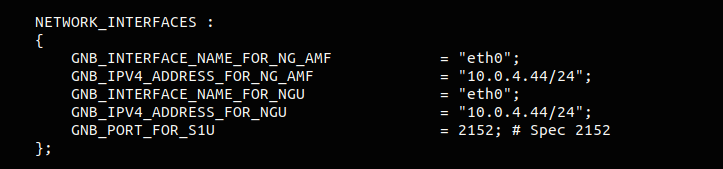
To make the gNB connected to the core network, you need to attach the gNB to the AMF of the core network. First note down the IP address of the interface
eth0of the gNB container by executing the following command in the terminal.# ifconfig eth0For this experiment, we assume that the IP address of gNB is 10.0.4.44.
Open the gNB configuration file with the following command.
# nano ~/openairinterface5g/targets/PROJECTS/GENERIC-NR-5GC/CONF/gnb.sa.band78.fr1.106PRB.usrpb210.confMake the necessary changes as shown in the figure below.
Edit the lines, shown in the image below, with the IP address you obtained in Step 9. Use /24 subnet mask while specifying the IP address, i.e., 10.0.4.44/24
Modify the line shown in the figure below with the respective attributes and values provided in the table. The IP address given to
sdr_addrsdepends on the UE we use for the experiment.
User Equipment
sdr_addrsvalueCurtissFarm-UE-000, FeedMill-UE-[000, 001]
sdr_addrs = "addr=192.168.40.2";AgronomyFarm-UE-[020, 032], Ames-UE-140
sdr_addrs = "addr=192.168.30.2";All other UEs
sdr_addrs = "addr=192.168.20.2";
Once the modification is complete, save (Press Ctrl+O) and exit (Press Ctrl+X) the nano editor.
Add a route to the core network from the gNB container with the following command at the gNB container.
Case 1: If you are using ARA-provided 5G core network: Use the following command.
# ip route add 192.168.70.128/26 via 10.0.4.4 dev eth0Case 2: If you are using your own core network: Use the IP address obtained from Step 8 (in this example it is 10.0.4.100) in the command as follows.
# ip route add 192.168.70.128/26 via 10.0.4.100 dev eth0To test the reachability of the 5G Core from the gNB container, run a ping in the gNB container toward the
AMFof the core network.# ping 192.168.70.132Running the Base Station: In the gNB container, run the OAI gNB using the following commands. In case of any error, refer our FAQ.
gNB command for connecting to FeedMill-UE-000:
# cd ~/openairinterface5g
# source oaienv
# cd cmake_targets/ran_build/build
# patch -f -u ../../../targets/PROJECTS/GENERIC-NR-5GC/CONF/gnb.sa.band78.fr1.106PRB.usrpb210.conf -i  ../../../freq.patch
# ./nr-softmodem -O ../../../targets/PROJECTS/GENERIC-NR-5GC/CONF/gnb.sa.band78.fr1.106PRB.usrpb210.conf --gNBs.[0].min_rxtxtime 6 --sa --usrp-tx-thread-config 1 --RUs.[0].att_tx 0 --RUs.[0].att_rx 30
gNB command for connecting to FeedMill-UE-001:
# cd ~/openairinterface5g
# source oaienv
# cd cmake_targets/ran_build/build
# patch -f -u ../../../targets/PROJECTS/GENERIC-NR-5GC/CONF/gnb.sa.band78.fr1.106PRB.usrpb210.conf -i  ../../../freq1.patch
# ./nr-softmodem -O ../../../targets/PROJECTS/GENERIC-NR-5GC/CONF/gnb.sa.band78.fr1.106PRB.usrpb210.conf --gNBs.[0].min_rxtxtime 6 --sa --usrp-tx-thread-config 1 --RUs.[0].att_tx 0 --RUs.[0].att_rx 30
gNB command for connecting to Agronomy Farm UE with ID 020:
# cd ~/openairinterface5g
# source oaienv
# cd cmake_targets/ran_build/build
# ./nr-softmodem -O ../../../targets/PROJECTS/GENERIC-NR-5GC/CONF/gnb.sa.band78.fr1.106PRB.usrpb210.conf --gNBs.[0].min_rxtxtime 6 --sa --usrp-tx-thread-config 1 --RUs.[0].att_tx 0 --RUs.[0].att_rx 27
gNB command to connect to all other UEs:
# cd ~/openairinterface5g
# source oaienv
# cd cmake_targets/ran_build/build
# ./nr-softmodem -O ../../../targets/PROJECTS/GENERIC-NR-5GC/CONF/gnb.sa.band78.fr1.106PRB.usrpb210.conf --gNBs.[0].min_rxtxtime 6 --sa --usrp-tx-thread-config 1 --RUs.[0].att_tx 0 --RUs.[0].att_rx 33
An important parameter that users want to change is the
center
frequency
. Even though it is advisable to keep it default, the center frequency can be modified using the following two parameters in the above-mentioned configuration file.absoluteFrequencySSBdl_absoluteFrequencyPointA
The parameters above take NR ARFCN values for the specific center frequency. You can use the online 5G NR ARFCN Calculator to get the
absoluteFrequencySSBin case if you are not familiar with the low-level calculation. To obtain the correspondingdl_absoluteFrequencyPointA, subtract1272from theabsoluteFrequencySSBvalue.Starting nrUE: In the UE container, run the OAI nrUE using the following commands. In case of error or UE not connecting to gNB, refer FAQ.
Note
If you want to connect multiple UEs to the same BS, configure the UEs as provided here before executing the following commands.
nrUE commands for FeedMill-UE-000
# cd ~/openairinterface5g
# source oaienv
# cd cmake_targets/ran_build/build
# ./nr-uesoftmodem -O ../../../targets/PROJECTS/GENERIC-NR-5GC/CONF/ue.conf -r 106 --numerology 1 --band 78 -C 3619200000 --ue-fo-compensation --sa -E --ue-txgain 0 --nokrnmod 1
nrUE commands for all UEs
# cd ~/openairinterface5g
# source oaienv
# cd cmake_targets/ran_build/build
# ./nr-uesoftmodem -O ../../../targets/PROJECTS/GENERIC-NR-5GC/CONF/ue.conf -r 106 --numerology 1 --band 78 -C 3416160000 --ue-fo-compensation --sa -E --ue-txgain 0 --nokrnmod 1
Important
It may happen that the UE (for example, Ames-UE-140) may not get connected in the first attempt due to factors such as interference and line-of-sight~(LoS) blockage. In such cases, stopping and running the UE command again provides a higher chance of getting the UE connected.
Console Traces
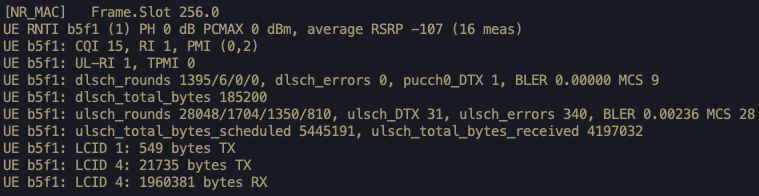
On establishing a successful connection, the commands provide the following output.
gNB Console Trace
nrUE Console Trace
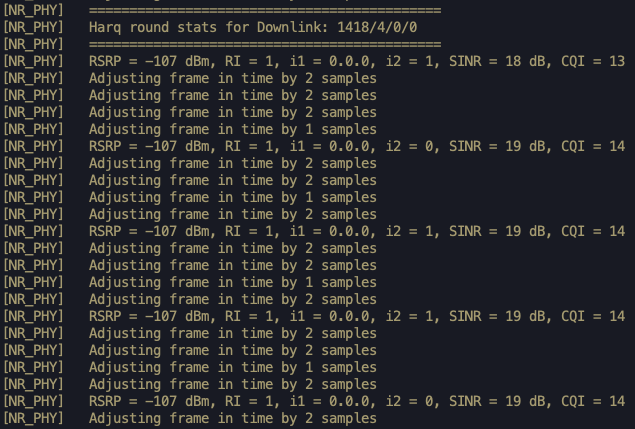
Note
When the connection is established, we can observe a new interface
oaitun_ue1at the nrUE container with an IP address assigned by the SMF of the core network. In order to find the IP address, open (or SSH into) another terminal for nrUE container and run the commandifconfig. For this experiment, we assume that the IP obtained is10.0.0.2.In this experiment, the interface name assigned to the nrUE by the SMF is given as
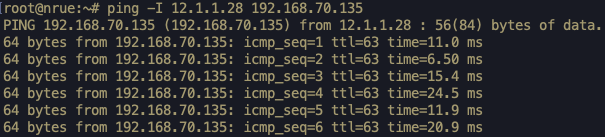
oaitun_ue1, which is used in the commands provided in the steps below.Ping test to the Core Network: On the nrUE container, run the following command to ping the core network to ensure stable connection.
# ping -I oaitun_ue1 192.168.70.135An example output of the ping command is shown below.
For recording the ping output to a text file (say ping_output.txt), we can use the following command.
# ping 192.168.70.135 -I oaitun_ue1 | tee ping_output.txtFor sending 10 packets with an inter-packet interval of 0.5 seconds, use the -c and -i options, respectively, as follows.
# ping 192.168.70.135 -I oaitun_ue1 -c 10 -i 0.5 | tee ping_output.txtThe file can be further copied to local machine using the instructions provided in Experiment Data Collection.
Throughput Test
For Case-1 with ARA-provided Core Network
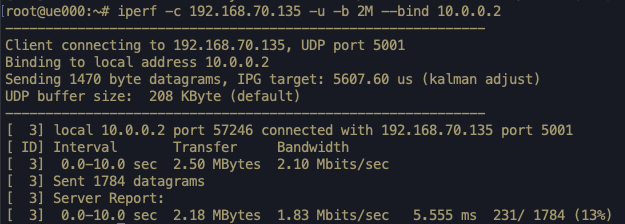
If you are using ARA-provided core network, you can measure ONLY the uplink throughput. Execute the following command at the nrUE container.
# iperf -c 192.168.70.135 -u -b 2M --bind 10.0.0.2The iPerf client command provides the throughput as follows:
For Case-2 with Your Own Core Network
Downlink Throughput: For measuring the throughput, we use the tool iperf. For the downlink throughput, follow the steps below.
Run the iperf server in the nrUE container using the following command. Remember to use the ip address of the
oaitun_ue1interface. In what follows, we assume the IP to be10.0.0.2.# iperf -s -i 1 -u -B 10.0.0.2Run the iperf client in the 5G core container. Remember to use the IP address of the
oaitun_ue1interface in nrUE after the-cflag. In what follows, we assume the UE IP to be10.0.0.2.# docker exec -it oai-ext-dn iperf -c 10.0.0.2 -u -b 2M --bind 192.168.70.135The iPerf client measures the throughput as shown in the figure in Step 15.
Uplink Throughput: For the uplink, we need to run the iperf server at the 5G core and iperf client at the nrUE.
For the uplink throughput, first, run the iperf server at the 5G core network.:
# docker exec -it oai-ext-dn iperf -s -i 1 -u -B 192.168.70.135Run iperf client in the nrUE container. Remember to use the IP address of the
oaitun_ue1interface at nrUE after the--bindflag. In what follows, we assume the UE IP to be10.0.0.2.# iperf -c 192.168.70.135 -u -b 2M --bind 10.0.0.2The iPerf client measures the throughput as shown in the figure in Step 15.
Connecting multiple UEs to BS
It is possible in this experiment to connect multiple UEs to the same BS. For example, Curtiss Farm BS (CurtissFarm-BS-000) has two UEs (CurtissFarm-UE-001 and CurtissFarm-UE-002) in its vicinity ready for establishing links. For establishing a second link, we need to create an additional lease for the second UE at Curtiss Farm and launch the UE container following the same procedure as described above.
In addition to launching containers, we need to modify the IMSI value in the configuration file of both UEs using the following steps:
Open the UE configuration file.
# nano /root/openairinterface5g/targets/PROJECTS/GENERIC-NR-5GC/CONF/ue.conf
For connecting multiple UEs, it is important to note that each UE should have different values for the imsi attribute in the configuration file. By default the configuration file has the imsi value
001010000000001. For the first UE, we can keep it as it is and, for the second UE, we can change it to001010000000002(changing the last digit) as follows:
After modifying imsi, save and exit from the file. Use Ctrl+X to save and exit if you are using the nano editor.
Run the nrUE at each UE using Step 12 described above.
Tip
If you want to perform weather measurements along with the RAN experiments, refer to ARA Weather APIs.